Showing posts with label remove. Show all posts
Showing posts with label remove. Show all posts
Thursday, February 5, 2015
How to remove pattern lock and hard reset your LG P700 P705 L7
Hi there,
If you forgot your password and you are unable to unlock your phone, well you came to the right place. If you already followed all tutorial in the internet then maybe this is your last resort. I will show you how to remove password, pattern lock and this can even fix Hang in logo issue on your LG P700 / P705 or also known L7.
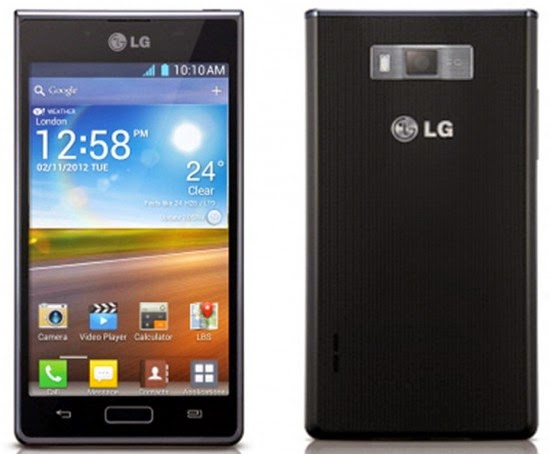
This procedure will work in Linux / Windows, sorry Mac users I dont know the command in OSX. Anyways I will explain first the Linux ways.
You can use this in any Debian distro such as Ubuntu, Kubuntu, Lubuntu, Crunchbang etc etc.. Okay here it is.
In your Linux system, install first the android-tools-adb
To install it go to your Terminal and then just type in;
sudo apt-get install android-tools-adb
Okay next we are going to wipe your phone now. Just follow the instructions I will just keep it simple :)
1. Press and Hold Volume UP and Volume DOWN, then insert USB Cable without releasing the buttons. And then Also press the Home Button. Just hold the three buttons until you see the recovery mode in your LG L7. Something like in the picture. Im sorry for the picture because I dont have the phone in my hand when I am writing this article. But for your reference something like that.

2. Launch Terminal and execute this command
sudo adb reboot recovery
press enter and then enter your password
3. Your device will reboot and then it will wipe the whole device.
Windows Way
First you need to have the following files:
1. Driver –----- >> L7 Driver
2. Adb tools –-->> adb tools
After downloading the files extract and install the l7 driver, after installing the driver go to adb-fastboot-win folder

And look for adb recovery.bat and run it.
And it will look something like this

Thats it you have successfully wipe your phone. And ready to setup and use it again.
I hope this tutorial help you. If you find any wrong procedure please drop us a comment.

Sunday, February 1, 2015
Hard Reset your Cherry Mobile Garnet and remove pattern lock password and gmail account

"PLEASE DROP A COMMENT IF THIS METHOD WORKS FOR YOUR PHONE THANK YOU"
Update: Tried this second time around yesterday and it is really working.
Update: Tried this second time around yesterday and it is really working.
Hard resetting / factory resetting your phone will solve the following issues:
1. If you forgot your pattern lock
2. If you forgot your gmail account
3. If you forgot your password
4. Apps that automatically force closing
5. Stuck in Cherry Mobile / Garnet Logo (sometimes does not work if the firmware is totally damage)
NOTE: Performing hard reset will erase your data.
To hard reset:
1. Turn off your phone
2. Press and Hold VOLUME UP + Power button then quickly insert USB cable ( you must plugged it in the PC). If you did not insert the USB cable Android system recovery will not appear
3. Select wipe / factory reset, press Volume rocker to navigate and press the Power Button to confirm your selection.
4. Reboot your phone.
Note: If performing hard reset did not succeed, you need to wipe the cache first in the android system recovery before performing wipe / factory reset.
I hope this tutorial helps you.. If you have any question just drop a comment.
Friday, January 30, 2015
Hard Reset your Asus Fonepad K004 and remove password pattern lock and gmail account
This tutorial is to hard reset your Asus Fonepad K004. Check out the tutorial below :)

Hard resetting / factory resetting your phone will solve the following issues:
1. If you forgot your pattern lock
2. If you forgot your gmail account
3. If you forgot your password
4. Apps that automatically force closing
5. Stuck in Asus Logo (sometimes does not work if the firmware is totally damage)
NOTE: Performing hard reset will erase your data.
To hard reset:
1. Turn off your tablet.
2. Press and Hold VOLUME UP + Power button. Keep pressing and holding until the phone power up and until you see "No USB Cable connected".
3. Press VOLUME UP and VOLUME DOWN simultaneously to reveal the recovery mode. Keep pressing, sometimes it takes 4 times until it goes through the recovery mode.
4. Select FACTORY RESET, press Volume rocker to navigate and press POWER Button to confirm your selection
5. Reboot your phone..
I hope this tutorial helps you.. If you have any question just drop a comment.
Thursday, January 29, 2015
Hard Reset your Torque Droidz Easy and remove Password Pattern Lock and Gmail Account

Hard resetting / factory resetting your phone will solve the following issues:
1. If you forgot your pattern lock
2. If you forgot your gmail account
3. If you forgot your password
4. Apps that automatically force closing
5. Stuck in Torque Logo (sometimes does not work if the firmware is totally damage)
NOTE: Performing hard reset will erase your data.
To hard reset:
For Jellybean version
1. Turn off your phone
2. Press and Hold VOLUME UP + Power button simultaneously. Do not release until you see an Android with exclamation mark.
3. Press Power Button to activate Android System Recovery
4. Select wipe / factory reset, press Volume rocker to navigate and press the Volume UP Button to confirm your selection.
5. Reboot your phone.
For KitKat version
1. Turn off your phone
2. Press and Hold VOLUME Down + Power button simultaneously. Do not release until you see a chinese character in your screen.
3. Select the the word with MMC in it. It will clear all data and it will automatically reboot your phone.
Note: If performing hard reset did not succeed, you need to wipe the cache first in the android system recovery before performing wipe / factory reset.
I hope this tutorial helps you.. If you have any question just drop a comment.
Hard Reset your Alcatel One Touch 5021E to remove password pattern lock and gmail account

For Fastboot Method Click Me
Hard resetting / factory resetting your phone will solve the following issues:
1. If you forgot your pattern lock
2. If you forgot your gmail account
3. If you forgot your password
4. Apps that automatically force closing
5. Stuck in Alcatel Logo (sometimes does not work if the firmware is totally damage)
NOTE: Performing hard reset will erase your data.
To hard reset:
1. Turn off your phone.
2. Press and hold VOLUME UP and POWER Button. Keep pressing the button until you see a boot MENU.
3. Select Recovery Mode (VOLUME UP to navigate, VOLUME Down to confirm your selection)
4. Android System Recovery will appear
5. Select wipe / factory reset, press Volume rocker to navigate and press the POWER Button to confirm your selection
6. Reboot your phone.
I hope this tutorial helps you.. If you have any question just drop a comment.
Subscribe to:
Posts (Atom)