Saturday, January 31, 2015
Creating a Flex AIR Screenshot app Part 6
The path the user can enter can be either an internet URL, or a local path. It is important to know that www.google.com or google.com alone wont work, http:// is required in front of the link. However, we dont know whether the path that the user entered is a local path or path to a file on the internet, and we dont know if http:// or something else is required, so we can just put "http://" by default into the text field, so that the user will just add his link to it (or replace the content completely with the link that he had copied, which is more likely).
So, find urlInput text field and put "http://" as its text value by default:
<s:TextInput width="250" id="urlInput" text="http://" />
The user should be able to enter anything in the address bar, a long as it is not blank, so lets add a check, which disables the two image buttons if the url is blank.
<custom:ImageButton img="@Embed(../lib/b_cut.png)" over="@Embed(../lib/b_cut_over.png)" toolTip="Crop area" click="goCrop();" buttonMode="true" enabled="{urlInput.text!=}" />
<custom:ImageButton img="@Embed(../lib/b_screenshot.png)" over="@Embed(../lib/b_screenshot_over.png)" toolTip="Take screenshot" buttonMode="true" enabled="{urlInput.text!=}" />
Now lets add some loading information to the crop stage window. Well add 2 label objects, one of them will contain the url, and the second one will display "Loading" or "Loaded".
Add these 2 labels, set the first ones id to cropStatus and the second ones text bound to urlString,
<s:NavigatorContent id="crop">
<s:VGroup width="100%" height="100%" gap="0">
<mx:HBox backgroundColor="#999999" width="100%" height="24" verticalScrollPolicy="off" verticalAlign="middle" paddingLeft="2">
<s:Button label="Back" click="{stack.selectedChild = loadpage}" />
<s:Button label="Continue" enabled="false" />
<s:Label id="cropStatus" />
<s:Label text="{urlString}" />
</mx:HBox>
<mx:HTML width="100%" height="100%" id="cropHTML" />
</s:VGroup>
</s:NavigatorContent>
Now we have to make urlString bindable:
[Bindable]
private var urlString:String;
Go to changeState(). In the second conditional, add lines that set cropStatus text value to Loading, as well as its color to yellow. Add a listener for its COMPLETE event and set onCropLoad function as its handler.
private function changeState():void {
if (stack.selectedChild == loadpage) {
contentBox.setStyle("horizontalAlign", "center");
urlInput.text = urlString;
cropHTML.htmlLoader.loadString("");
}
if (stack.selectedChild == crop) {
maximize();
contentBox.setStyle("horizontalAlign", "left");
cropHTML.htmlLoader.load(new URLRequest(urlString));
cropHTML.width = contentBox.width;
cropHTML.height = contentBox.height;
cropStatus.text = "Loading";
cropStatus.setStyle("color", "#ffff00");
cropHTML.addEventListener(Event.COMPLETE, onCropLoad);
}
}
The onCropLoad function sets the text to Loaded and color to white:
private function onCropLoad(evt:Event):void {
cropStatus.text = "Loaded";
cropStatus.setStyle("color", "#ffffff");
}
And thats all for today.
Full code:
<?xml version="1.0" encoding="utf-8"?>
<s:WindowedApplication xmlns:fx="http://ns.adobe.com/mxml/2009"
                       xmlns:s="library://ns.adobe.com/flex/spark"
   xmlns:custom="*"
                       xmlns:mx="library://ns.adobe.com/flex/mx" showStatusBar="false"
   width="450" height="300" creationComplete="init();">


<fx:Declarations>
<mx:ArrayCollection id="headerTitles">
<fx:Object step="Step one:" description="load a web page." />
<fx:Object step="Step two:" description="set your export preferences." />
<fx:Object step="Step two:" description="select the area you wish to crop." />
<fx:Object step="Step three:" description="set your export preferences for the cropped image." />
<fx:Object step="Final step:" description="please wait while your images are being expored." />
</mx:ArrayCollection>
</fx:Declarations>

<fx:Style>
@namespace s "library://ns.adobe.com/flex/spark";
@namespace mx "library://ns.adobe.com/flex/mx";

.descriptionText{
fontSize: 24;
color: #fff;
}

#headStep{
fontSize: 30;
fontWeight: bold;
color: #ffffbb;
}

#headDesc{
fontSize: 30;
color: #ffffff;
}
</fx:Style>

<fx:Script>
<![CDATA[
import flash.events.Event;
import flash.filesystem.File;
import flash.net.URLRequest;
import mx.events.FlexNativeWindowBoundsEvent;

[Bindable]
private var urlString:String;

private function init():void {
addEventListener(FlexNativeWindowBoundsEvent.WINDOW_RESIZE, onResize);
}

private function doBrowse():void{
var file:File = new File();
file.addEventListener(Event.SELECT, browseSelect);
file.browseForOpen("Load a webpage");

function browseSelect(evt:Event):void {
urlInput.text = file.nativePath;
}
}

private function goCrop():void {
stack.selectedChild = crop;
urlString = urlInput.text;
}

private function changeState():void {
if (stack.selectedChild == loadpage) {
contentBox.setStyle("horizontalAlign", "center");
urlInput.text = urlString;
cropHTML.htmlLoader.loadString("");
}
if (stack.selectedChild == crop) {
maximize();
contentBox.setStyle("horizontalAlign", "left");
cropHTML.htmlLoader.load(new URLRequest(urlString));
cropHTML.width = contentBox.width;
cropHTML.height = contentBox.height;
cropStatus.text = "Loading";
cropStatus.setStyle("color", "#ffff00");
cropHTML.addEventListener(Event.COMPLETE, onCropLoad);
}
}

private function onCropLoad(evt:Event):void {
cropStatus.text = "Loaded";
cropStatus.setStyle("color", "#ffffff");
}

private function onResize(evt:Event):void {
if (stack.selectedChild == crop) {
cropHTML.width = contentBox.width;
cropHTML.height = contentBox.height;
}
}
]]>
</fx:Script>

<s:VGroup width="100%" height="100%" gap="0">
<mx:HBox backgroundColor="#333333" height="46" width="100%" paddingTop="10" paddingLeft="10">
<s:Label id="headStep" text="{headerTitles.getItemAt(stack.selectedIndex).step}" />
<s:Label id="headDesc" text="{headerTitles.getItemAt(stack.selectedIndex).description}" />
</mx:HBox>
<mx:Box backgroundColor="#666666" width="100%" height="100%" id="contentBox" horizontalAlign="center">
<mx:ViewStack id="stack" change="changeState();">
<s:NavigatorContent id="loadpage">
<s:VGroup width="100%" horizontalAlign="center" paddingTop="20">
<s:Label styleName="descriptionText">Enter the link to the page:</s:Label>
<s:HGroup>
<s:TextInput width="250" id="urlInput" text="http://" /><s:Button label="Browse local..." click="doBrowse();" />
</s:HGroup>
<s:HGroup>
<custom:ImageButton img="@Embed(../lib/b_cut.png)" over="@Embed(../lib/b_cut_over.png)" toolTip="Crop area" click="goCrop();" buttonMode="true" enabled="{urlInput.text!=}" />
<custom:ImageButton img="@Embed(../lib/b_screenshot.png)" over="@Embed(../lib/b_screenshot_over.png)" toolTip="Take screenshot" buttonMode="true" enabled="{urlInput.text!=}" />
</s:HGroup>
</s:VGroup>
</s:NavigatorContent>

<s:NavigatorContent id="screenshotsettings">

</s:NavigatorContent>

<s:NavigatorContent id="crop">
<s:VGroup width="100%" height="100%" gap="0">
<mx:HBox backgroundColor="#999999" width="100%" height="24" verticalScrollPolicy="off" verticalAlign="middle" paddingLeft="2">
<s:Button label="Back" click="{stack.selectedChild = loadpage}" />
<s:Button label="Continue" enabled="false" />
<s:Label id="cropStatus" />
<s:Label text="{urlString}" />
</mx:HBox>
<mx:HTML width="100%" height="100%" id="cropHTML" />
</s:VGroup>
</s:NavigatorContent>

<s:NavigatorContent id="cropsettings">

</s:NavigatorContent>

<s:NavigatorContent id="export">

</s:NavigatorContent>
</mx:ViewStack>
</mx:Box>
</s:VGroup>

</s:WindowedApplication>
Thanks for reading!

Zo Yi Mid 101 10 1 inch Rk3066 Android Tablet PC Flashing Tools Tips Review
Zo-Yi Mid-101 10.1 inch
Flashing Tools,tips and Specifications
 |
| Zo-Yi MID 101 Tablet Pc |
ZO-YI MID 101 Short Review :
ZO-YI MID 101 is Rockchip CPU RK3066 based Cortex A9, 1.6 Dual core processor Tablet available in market. Along with amazing size of 10.1 inch with HD display of 1280 x 800 px HD,capacitive IPS touch screen . Zo-Yi mid tablet is dual camera tablet , front cam is 0.3 MP and rare cam is 2.0 MP. 10.1 Inch display is amazing to play the 1080p games with the facility of 1GB DDR3 RAM. Carries the latest android 4.0 with WIFI,bluetooth (2.0) ,built in memory 16Gb . You can use microsd card 16GB to 32GB to double its memory. Tablet currently available in 199.99 $. The build is light Quality and spec wise this tablet is worth to buy.
Flashing Tools,Tutorials and Tips for ZO-YI Mid Tablet :
ZO-YI MID 101 is Rockchip CPU Based Tablet. Rockchip CPU based tablets are always flash,restore with RKBatch Tool . All you need to find, flashing file /generic rom , or official firmware to restore or flash your android tablet. Before flashing RockChip based tablets , make sure you have original ROM,Custom ROM from Reseller or Developers. Otherwise there is high chances to brick rockchip CPU based tablets.
In this blog you can find Flashing Tutorials .You can also find information in PDF. There are other Tools which can be helpful to solve some of tablet problem without flashing firmware. You can check them before flashing Rockchip Tablets.
Note : Flashing generic tablet firmware should be last option.
Find Drivers for Rockchip:
Why I need to Restore or Reset my Android Tablet Pc?
1. Forgotten Pattern Lock . 2.Too many pattern attempts / Reset user lock.3. Tablets PC stuck on Gmail account.4. Android Tablets PC stuck on Android logo.5. Tablet Android hang on start up / Multiple errors generating by OS.
6. Android Market having problems or generating errors.
7.Upgrading to new Android OS.
How to Download Firmware
6. Android Market having problems or generating errors.
7.Upgrading to new Android OS.
How to Download Firmware
To download official or rooted firmware visit www.rockchipfirmware.com/
Update Amazon Kindle Fire 7 inch tablet to 4 1 1 Jelly Bean
How to Update
Amazon Kindle Fire 7 inch tablet
to
4.1.1 Jelly Bean .
Before Starting Charge Kindle Fire battery to 100%. Backup all your Data .
We are not responsible for any damages . If you follow and work step by step then you should be succeeded.
Watch Video Tutorial before Proceeding which will help you to understand whole method easily .
Flashing Amazon Kindle Fire :
- First of All install TWRP. It works like firmware backup and restore .
- (Read more about TWRP (Team win Recovery Project) ).
- Download Android Jelly Bean for kindle fire and install Google Apps 7-10 on Computer.
- Now connect Kindle Fire to computer and copy both downloaded file to root directory of internal SD.
- Turn off your Tablet , reboot it normally and when the fire triangle appear ,press and hold the reboot button.
- Launch TWRP on Kindle fire .Create a Nandroid backup of the current ROM, which will help you in case of something went wrong.
- Do factory data reset , wipe cache and Dalvik cache from within TWRP.
- Select "install --- select the ROM (which have copied before)and click on flash." Apply the same with the Google Apps package.
- Once installation complete click on reboot . It will take upto 5 minutes for First display.
- Congrats. your Amazon Kindle Fire tablet is on 4.1.1.
Note : If you feel any problem , error , launch TWRP and select restore to bring back saved ROM.
Trial Version Software Convert To Full Version

Asalam-o-Alaikum Freinds!!!
Dosto aaj mai ap Logo ko aik ase Software kai Bare btane jarha hou Jis ki Madad se ap kesi bhi Trail Version Software ko hamesha k leye use kerskte hain or Trail Version Software ko Full Version bna sakte hain Niche dye howe Link se Software Free Download Kare or Trail Version Software ko Hamesha k leye use kare...
I hope ap Logo ko ye Post Passand aye hogi ,, ager ap ko ye Software passand aya to Comment kena mat bholye!!!

DOWNLOAD
Friday, January 30, 2015
Hard Reset your Asus Fonepad K004 and remove password pattern lock and gmail account
This tutorial is to hard reset your Asus Fonepad K004. Check out the tutorial below :)
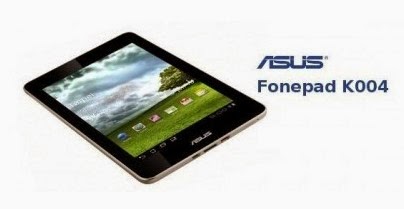
Hard resetting / factory resetting your phone will solve the following issues:
1. If you forgot your pattern lock
2. If you forgot your gmail account
3. If you forgot your password
4. Apps that automatically force closing
5. Stuck in Asus Logo (sometimes does not work if the firmware is totally damage)
NOTE: Performing hard reset will erase your data.
To hard reset:
1. Turn off your tablet.
2. Press and Hold VOLUME UP + Power button. Keep pressing and holding until the phone power up and until you see "No USB Cable connected".
3. Press VOLUME UP and VOLUME DOWN simultaneously to reveal the recovery mode. Keep pressing, sometimes it takes 4 times until it goes through the recovery mode.
4. Select FACTORY RESET, press Volume rocker to navigate and press POWER Button to confirm your selection
5. Reboot your phone..
I hope this tutorial helps you.. If you have any question just drop a comment.
Android beginner tutorial Part 3 Android project structure
After creating your Android project in Eclipse, youll see the project file browser in the left side of the screen. Here is what mine looks like:

The project structure may differ if your API version is different, but it still should be somewhat similar.
Lets start by exploring the res directory. This is a resource folder, which contains the resources that youll be using in your application, such as images, strings, animations and so on. The ADT plugin generates and adds some folders and files inside the res directory after creating the project.
The res/drawable-hdpi, res/drawable-ldpi, res/drawable-mdpi and res/drawable-xhdpi folders are used to store images, that are used in your application. The reason for splitting the images in multiple folders is the different screen resolutions for devices. Youll find different versions of the launcher icon youve set while creating the project in all of these folders.
The next folder is res/layout - it contains XML files that represent layout of the Activities in your application.
The res/menu folder stores XML files for defining application menus, which are used for different purposes, for example, the options menu.
The res/values folder stores values that are used in your application. These can be strings, arrays, styles and more.
You can see res/values-v11 and res/values-v14 folders in my screenshot above, which contain styles.xml. These are the themes that used instead of the default styles.xml for API version 11 and API version 14.
These are not the only folders that can be contained within the res folder. There are a few more pre-defined directories that, if not generated automatically, can be created manually. It should be noted that Android is rather strict about the resource directory and most of the folder names are pre-defined. For example, Android doesnt support folders inside other folders here.
Thats the general information about the items in the resource directory. We will learn their purpose and usage in details as we work on our application.
The next file we should take a look at is the MainActivity.java file inside the package folder inside src. If you open it, the contents look something like this:

This is basically a Java class, which contains the functionality code for the main Activity. So, XML is used to set the layout for the activity, and this Java class is used to add functionality. Its similar to Flex - the application layout is defined in a MXML file, and the code is in AS3 classes.
We wont delve into the code right now, lets instead check out one more item in the project folder - AndroidManifest.xml.
This is basically the configuration file - it declares the general information about the application (version, package...), components of the application, lists the libraries that are used, application permissions, etc. Its comparable to the descriptor.xml file in Adobe AIR projects.
You can edit this file manually as an XML file, or using the Manifest Editor that Eclipse offers. The basic important info is filled out automatically when you create a project. You can edit them here any time.
And those are the essentials that you need to know about the structure of an Android project folder.
Well learn how to run and debug applications next time.
Thanks for reading!
PowerPoint templates
| Com140 Powerpoint Final (Cafe) - StudentOfFortune.com 4 tutorials available for I need a PowerPoint Presentation for a cafe COM140. Just trying to get more ideas...... Student of Fortune - Recent Questions - http://studentoffortune.com/ |
| LANcom Technology Blog » Get free PowerPoint templates and music ... By Mysti Looking for the just the right template for a PowerPoint presentation? TemplateWise have heaps of professional looking PowerPoint templates available for free on their website. You can browse the TemplateWise site by category, tags, ... LANcom Technology Blog - http://blog.lancom.co.nz/ |
| Portable PowerShrink 4.0 Multilanguage | Virtual Download By admin Excel, Word & PowerPoint - Compress and optimize your PowerPoint presentations, Excel sheets & Word documents while keeping the original file format. Click on Link Below To Start Download. Portable PowerShrink 4.0 Multilanguage ... Virtual Download - http://virtualdownload.net/ |
Subscribe to:
Posts (Atom)